Documentation
Getting started
From an empty project to your first screen, step by step.
Create a project
On the home screen you create a new project: blank, or from one of the 15 ready-made screens. A project gathers all the screens of your app; each page picks its own device — phone, tablet or desktop — and Draft draws its frame.
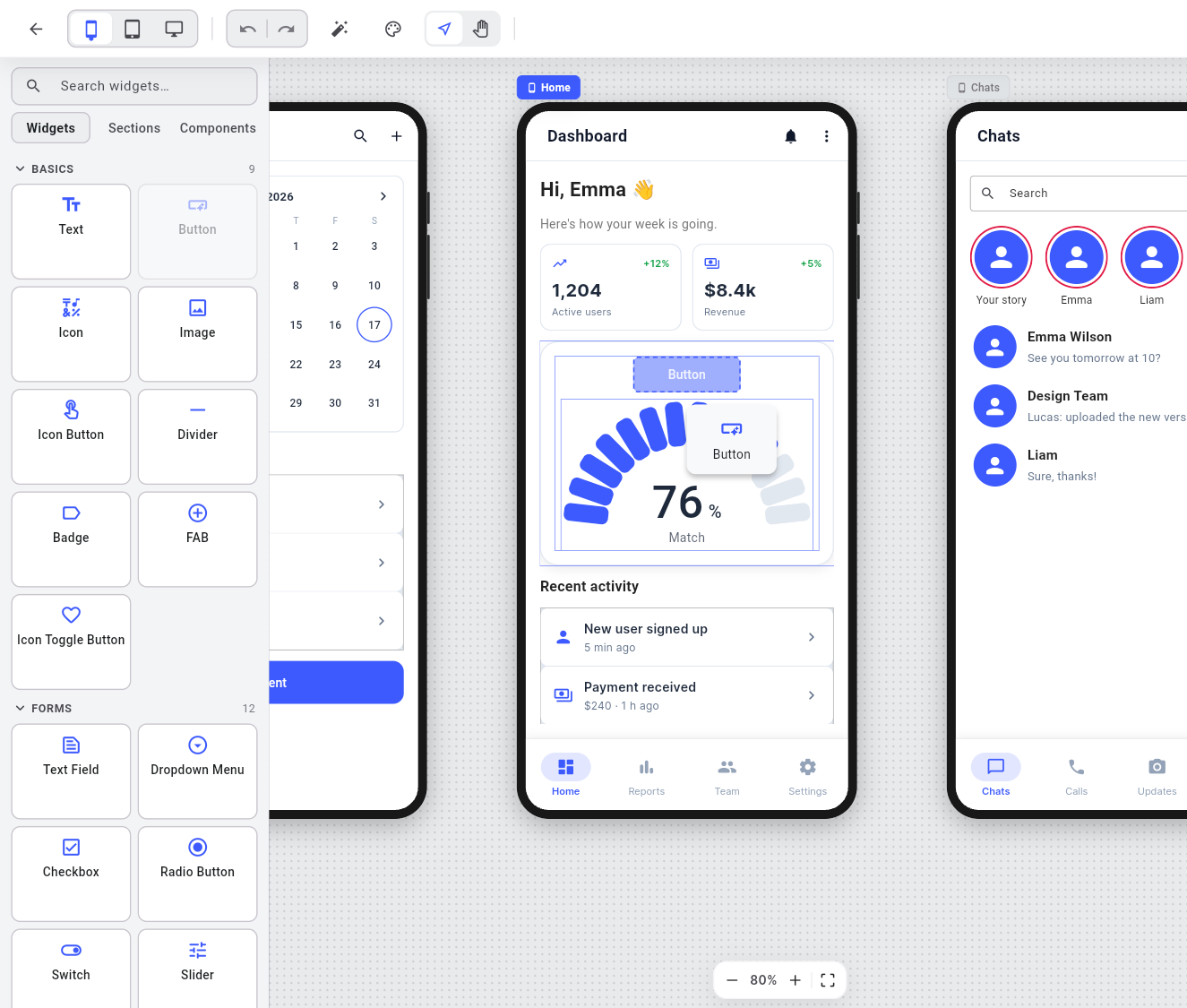
Drag pieces onto the canvas
The palette has three views: Widgets, Sections and Components. Drag one onto the canvas: a ghost shows where it will land. What you drop is a real Flutter widget, not a drawing.
Change it in Properties
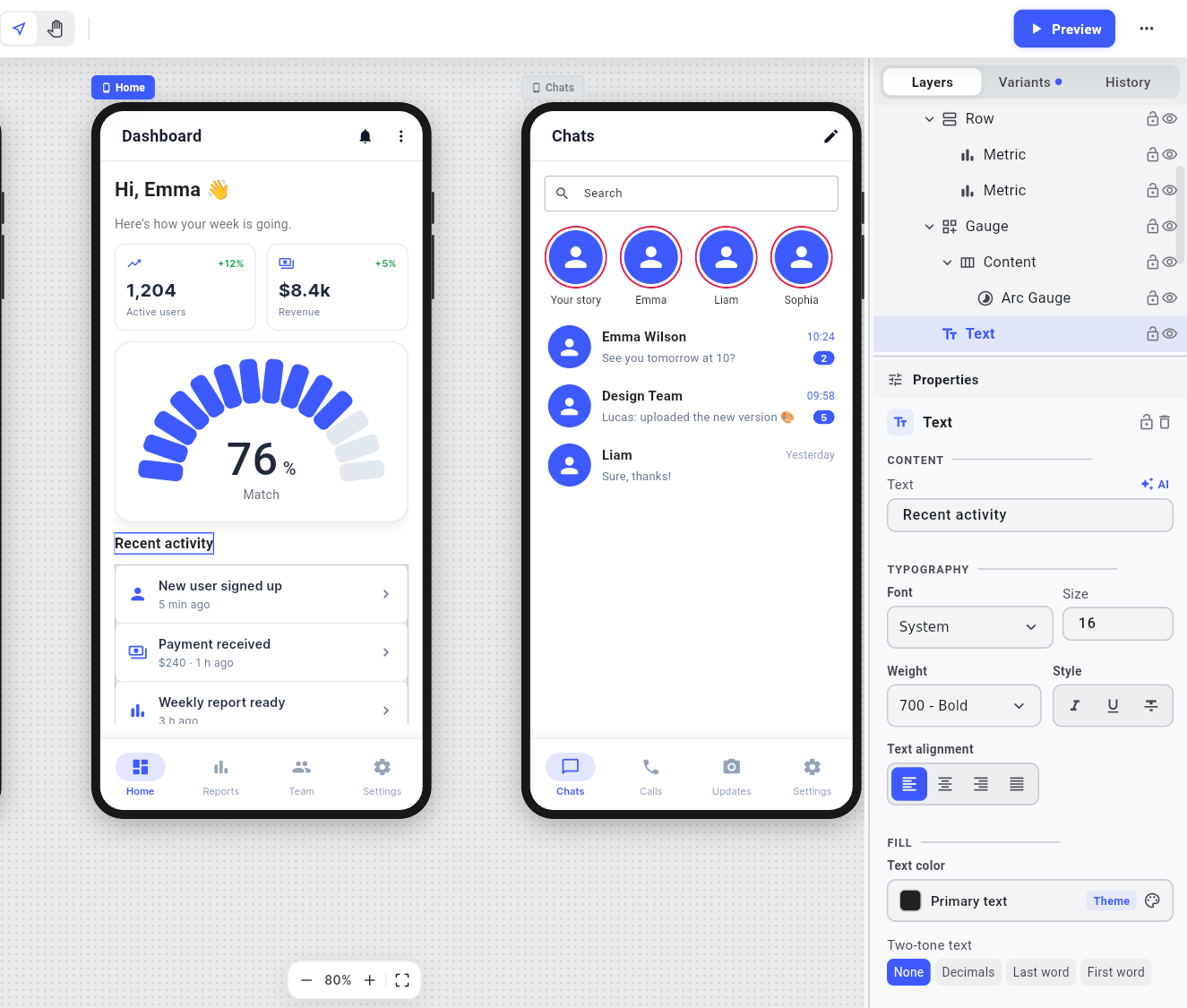
Select a piece and its Properties panel opens on the right: text, size, color, what it does. Every change can be undone, and History shows them as a timeline.
Give it a style
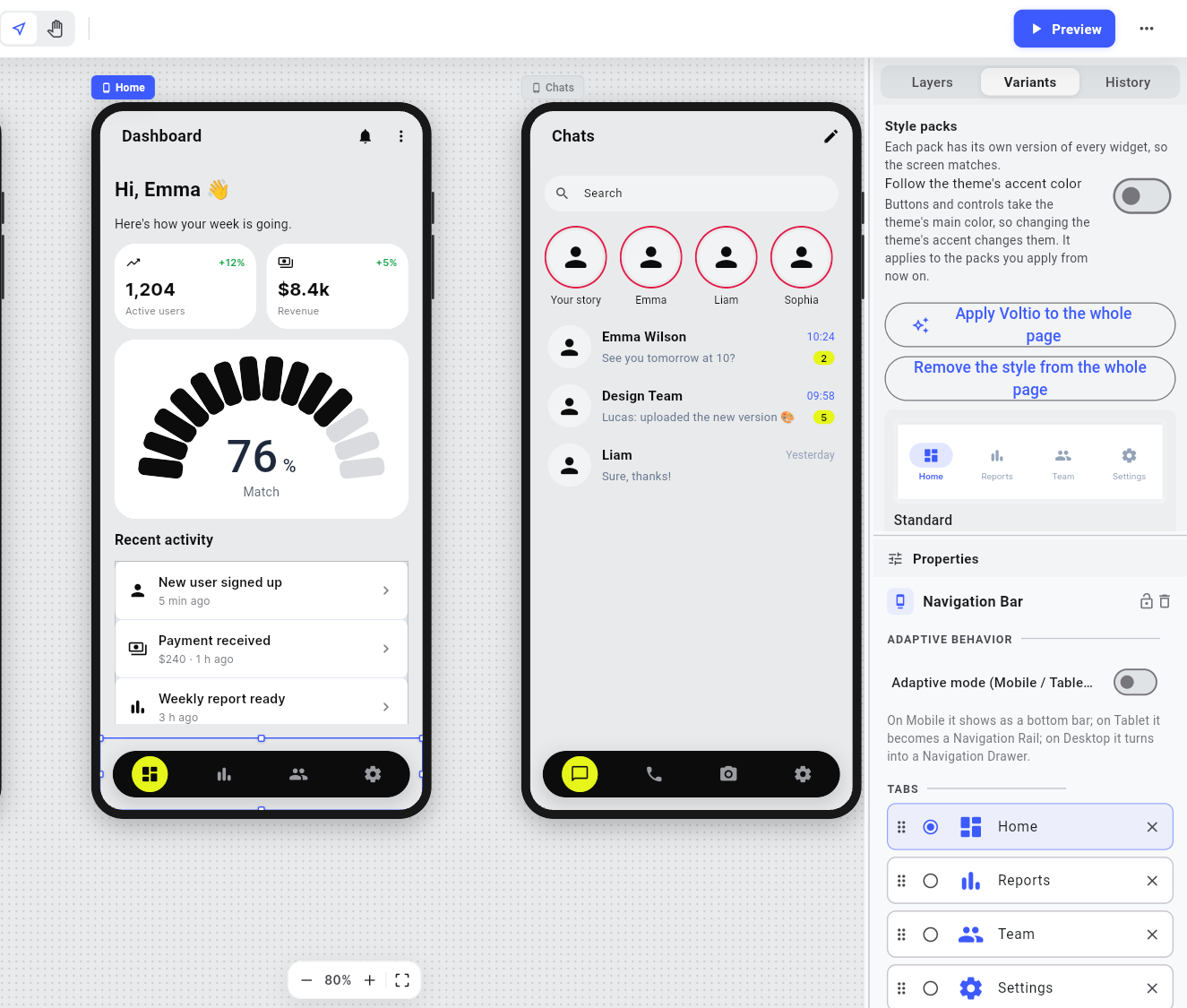
The Variants tab has other versions of the chosen widget and the style packs. A pack applies to one widget or to the whole page, and the screen matches.
Try it in the preview
The preview is not a still image: buttons go where you told them, switches turn on, fields take text.

Take the code
Right-click a widget and choose copy code, or export the whole page to a .dart file. See "Taking the code".